
Step 01Get a subscription
Copy a Clash subscription URL from your provider, then return to Clash for Android to import it. This guide uses 畅连 as an example.
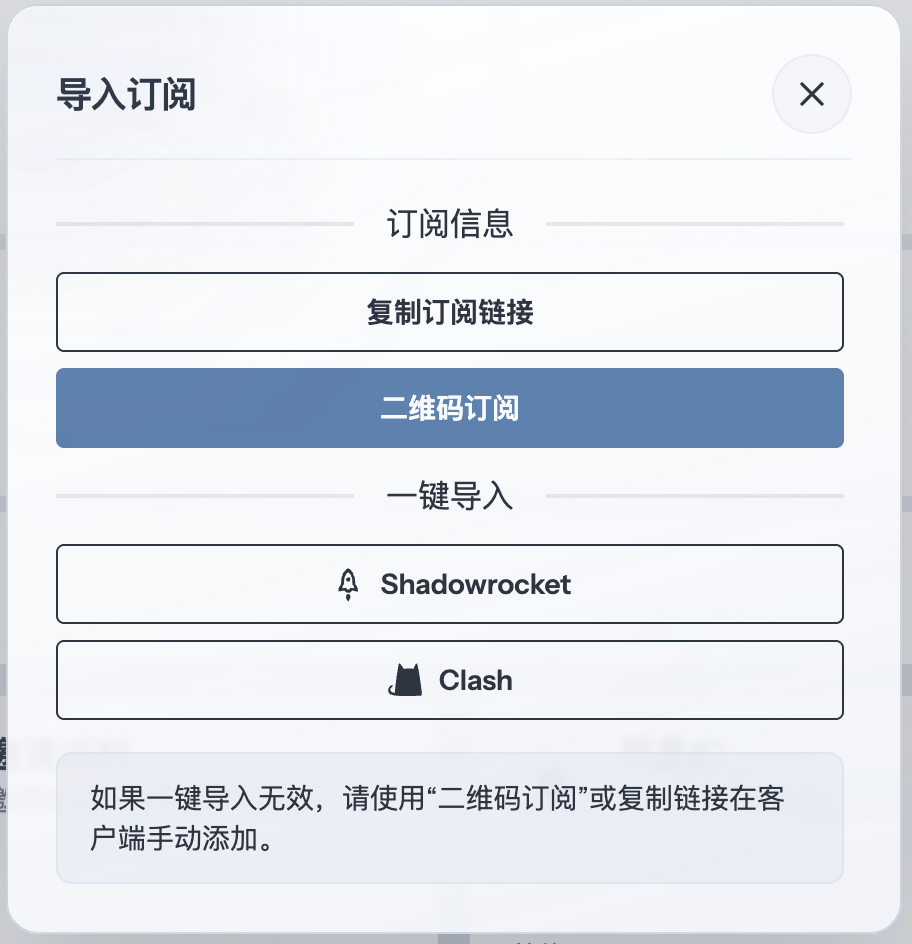
Step 02Add a profile
Open Clash for Android and tap Profiles.
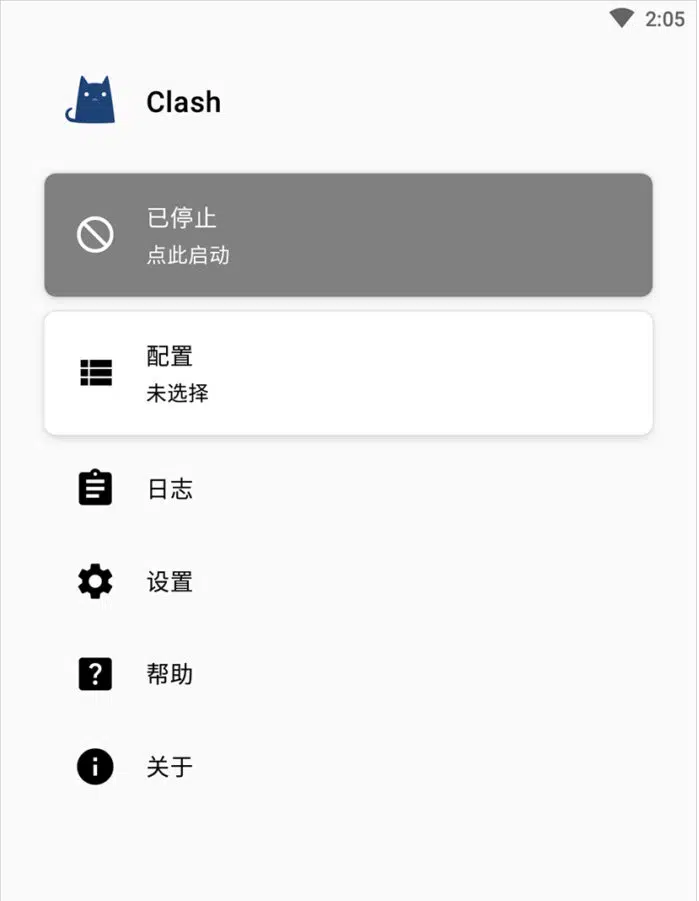
Tap the + button in the upper-right corner to create a profile.

Choose Import from URL to fetch a profile from the subscription link.
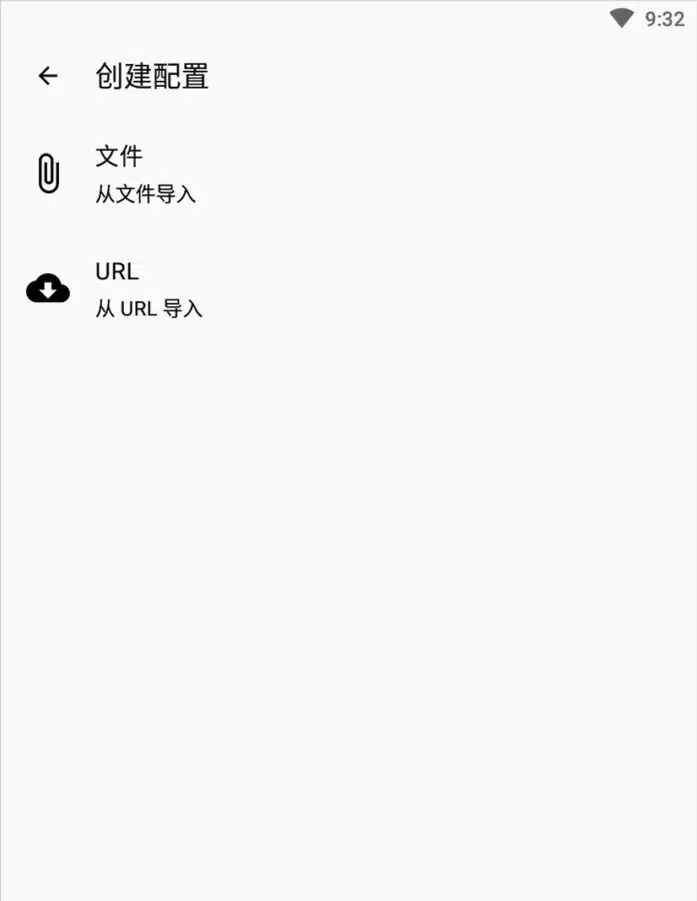
Paste the subscription URL into the URL field and tap Save.
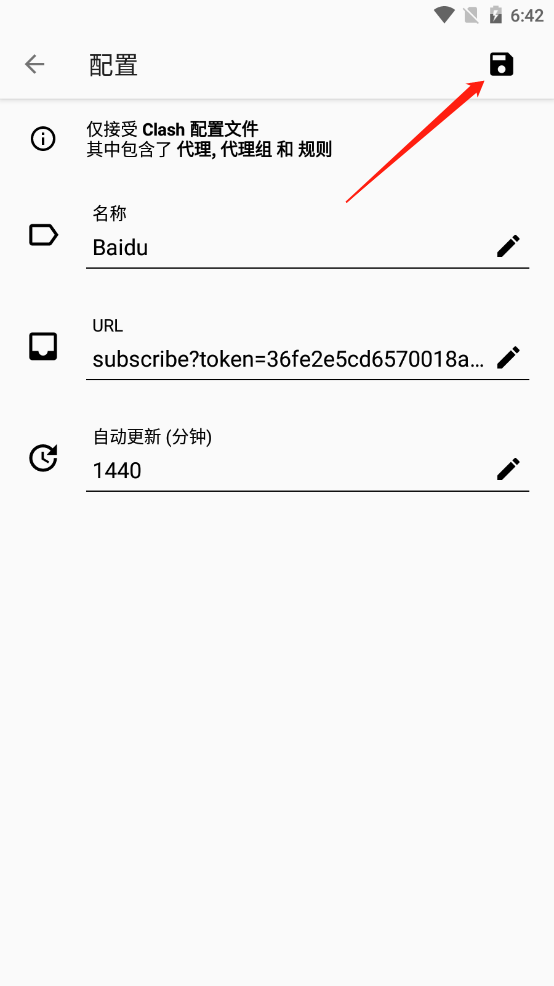
Step 03Select the profile
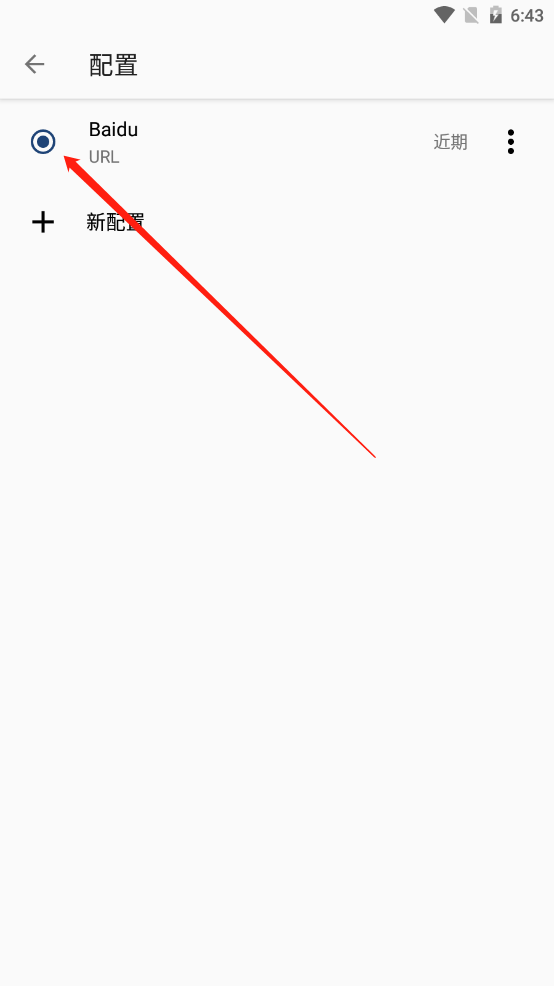
Select the profile you just added, then return to the home screen.
Step 04Start the proxy
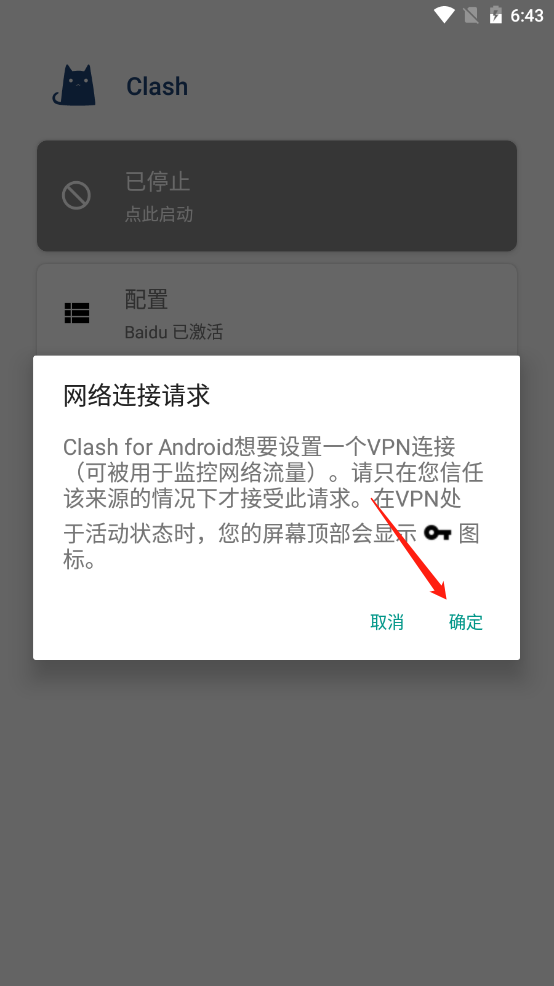
Tap Stopped to start the proxy. Android will ask for VPN permission the first time; approve the request to continue.
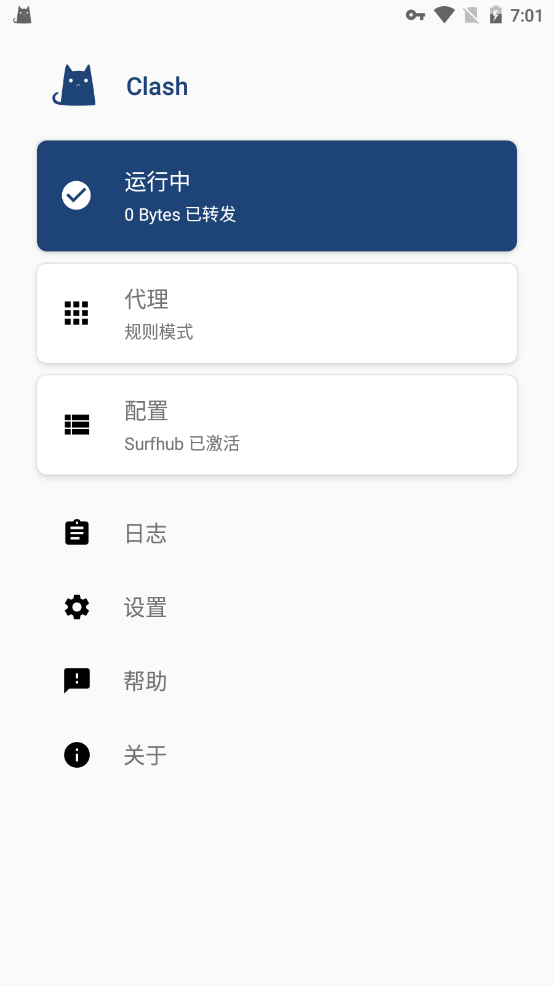
Confirm that a VPN or key icon appears in the status bar. Traffic is now routed through the active Clash for Android profile.
Step 05Understand proxy modes
Clash for Android provides four proxy modes:
- Rule: routes requests according to the profile rules.
- Global: sends every request through the proxy server.
- Direct: connects every request directly without a proxy.
- Script: routes requests according to script logic.
Global mode can proxy traffic that would otherwise connect directly, slowing local services and using plan data. Rule mode preserves direct access where appropriate, so it is usually the best default.