Step 01Get a subscription
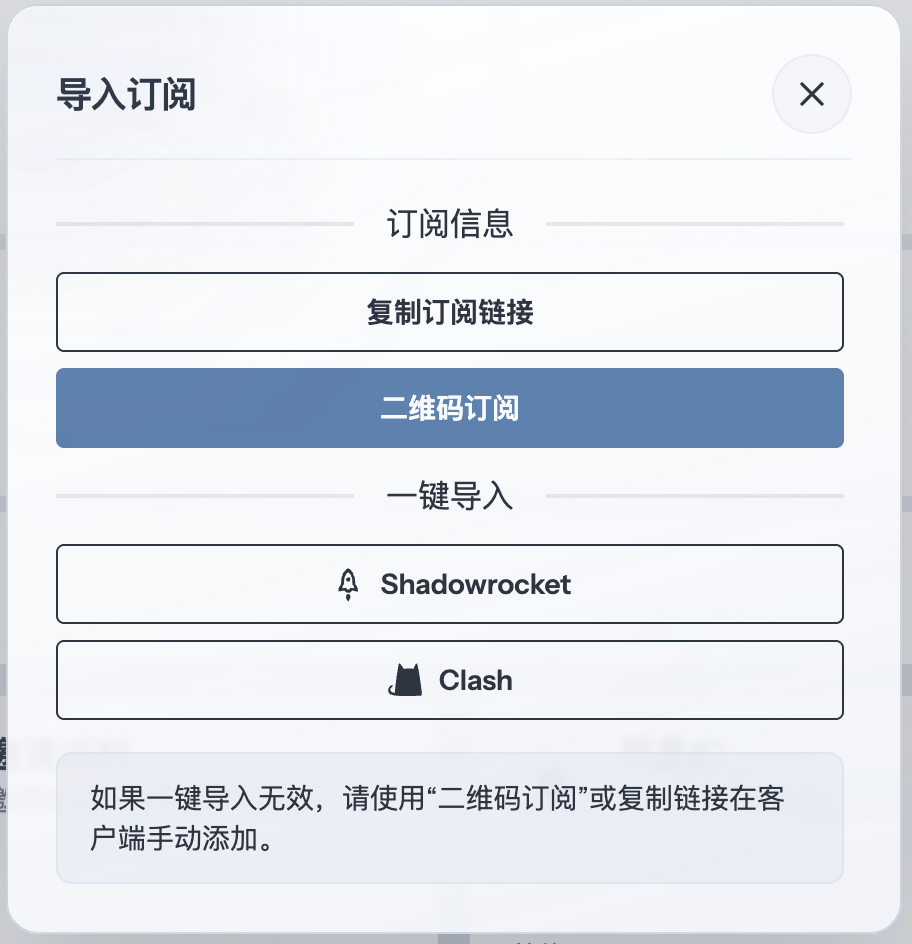
Copy a subscription URL supported by Quantumult X from your provider, then return to the app to add it. This guide uses 畅连 as an example.
Step 02Add the subscription
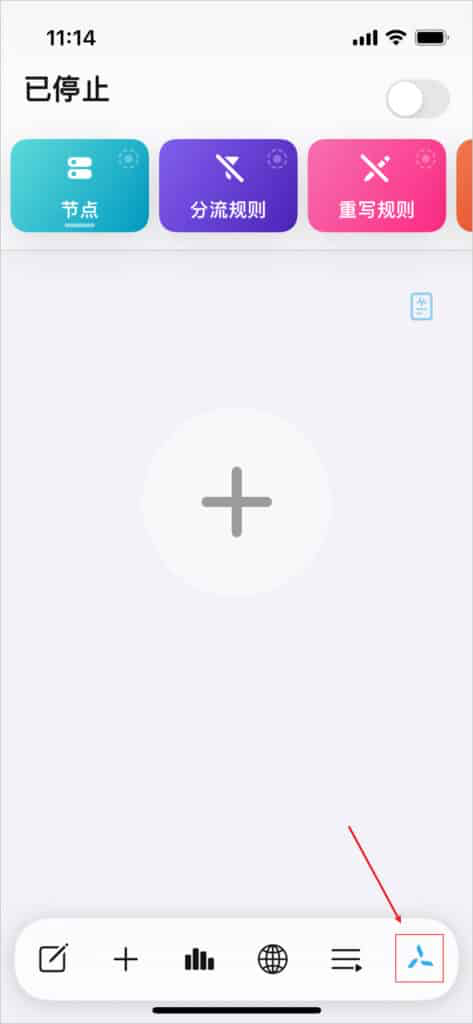
Tap the pinwheel icon in the lower-right corner of the home screen to open Settings.
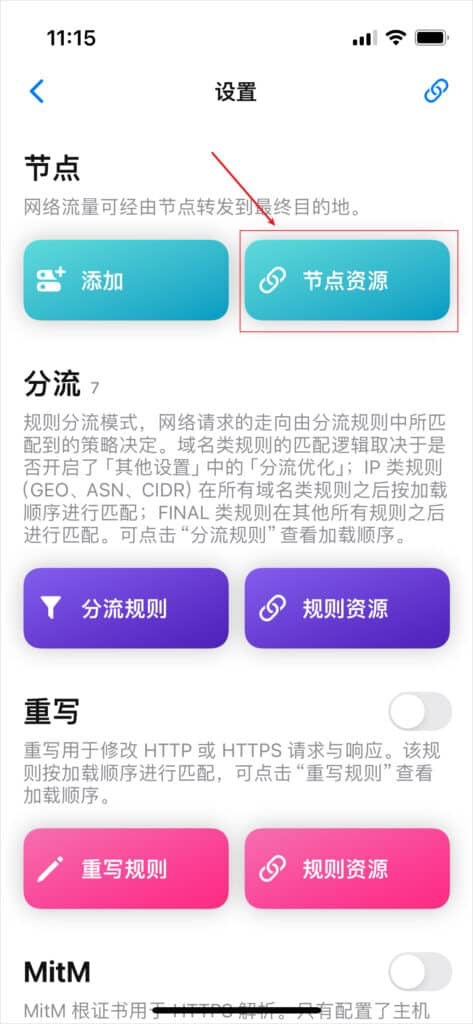
On the Settings page, tap Server Resources.
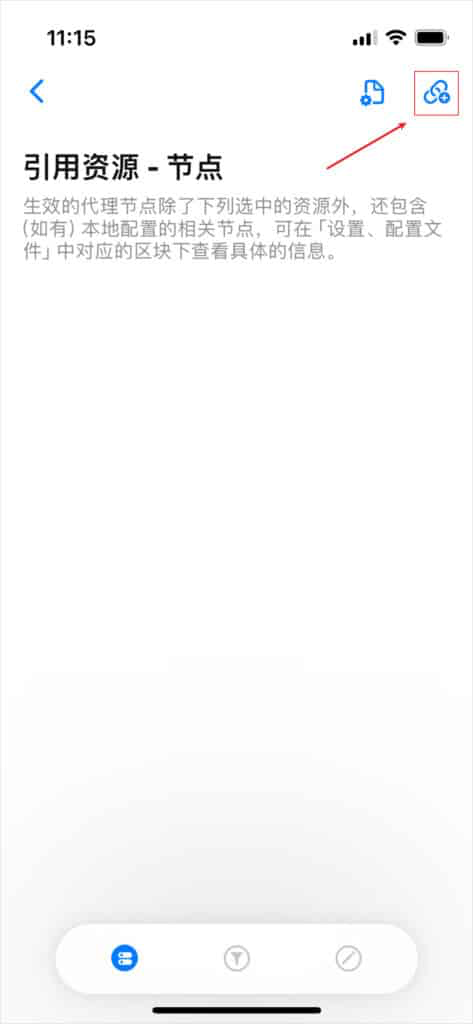
On Server Resources, tap the icon in the upper-right corner to add a resource.
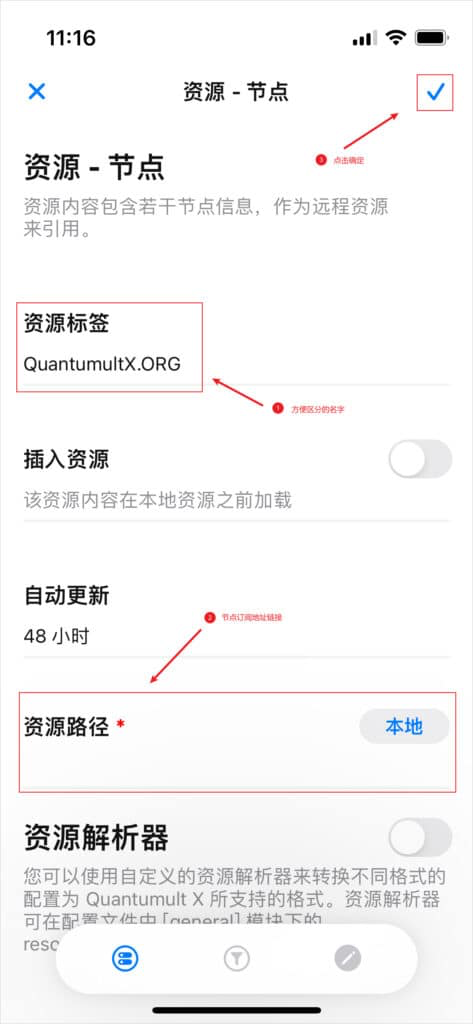
Enter a recognizable resource tag, paste the subscription URL into Resource Path, and tap the check mark in the upper-right corner to save.
Step 03Start the proxy
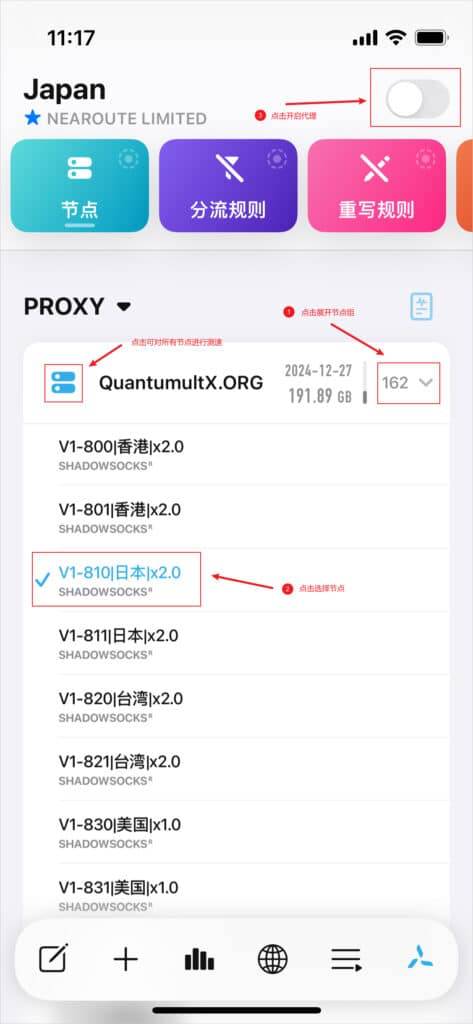
Return to the home screen, select one of the newly imported nodes, and tap the button in the upper-right corner to connect. Traffic is now routed according to the active Quantumult X configuration.
Step 04Understand running modes
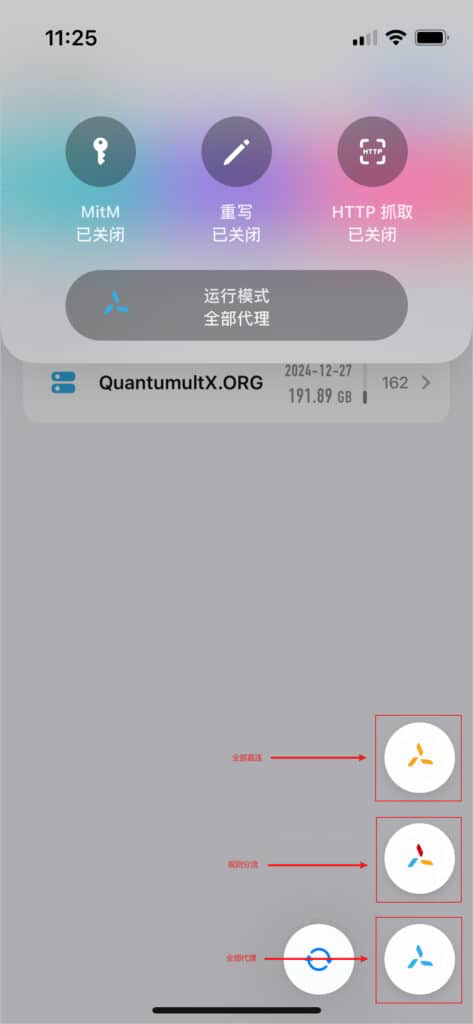
Quantumult X provides three running modes:
- All Proxy: sends every request to the node selected by the built-in PROXY policy.
- Rule-based: selects an outbound path for each request according to routing rules and policies.
- All Direct: connects every request directly without a proxy.
Press and hold the pinwheel icon in the lower-right corner, then choose a mode from the menu.