

Step 01Get a subscription
Copy a Clash/Mihomo subscription URL from your provider, then return to Clash Nyanpasu to import it. This guide uses 畅连 as an example.
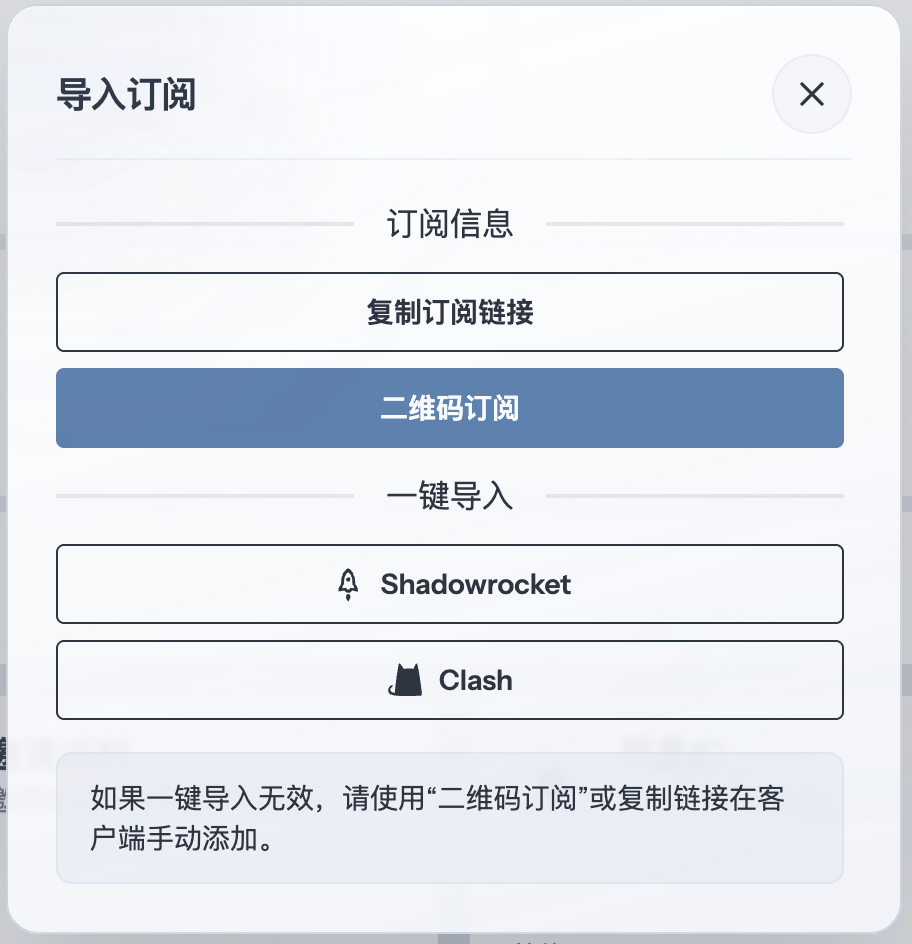
Step 02Import the subscription
1. Launch Clash Nyanpasu and click Profiles in the left menu.
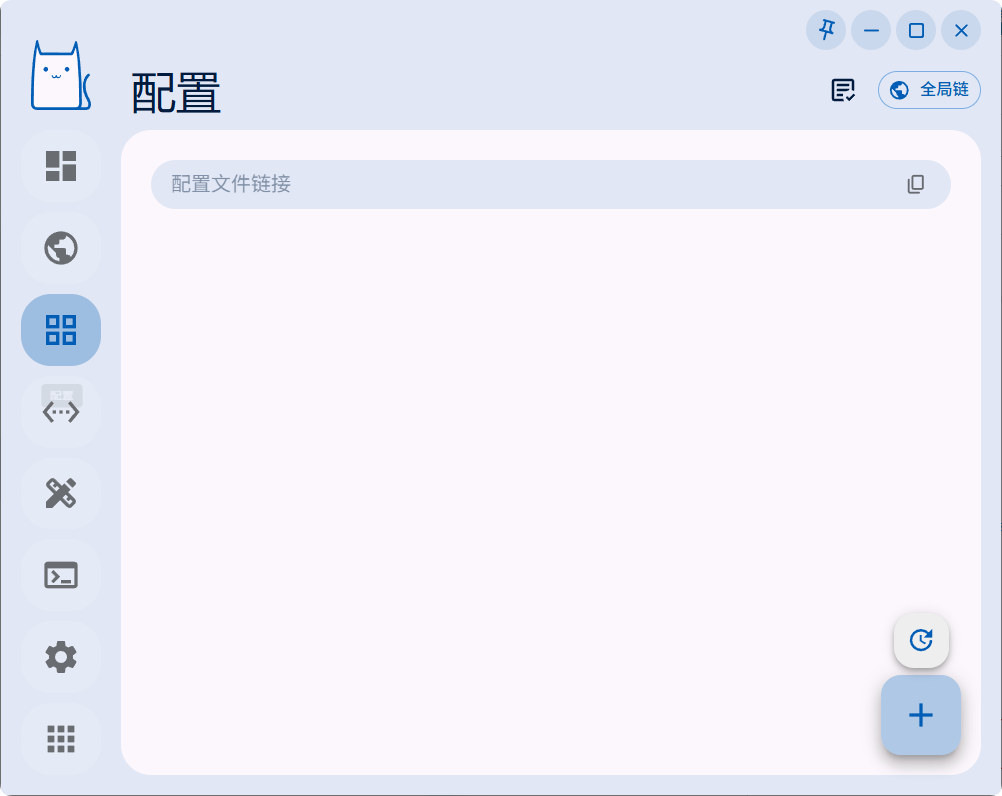
2. Paste the subscription URL, then click Download.
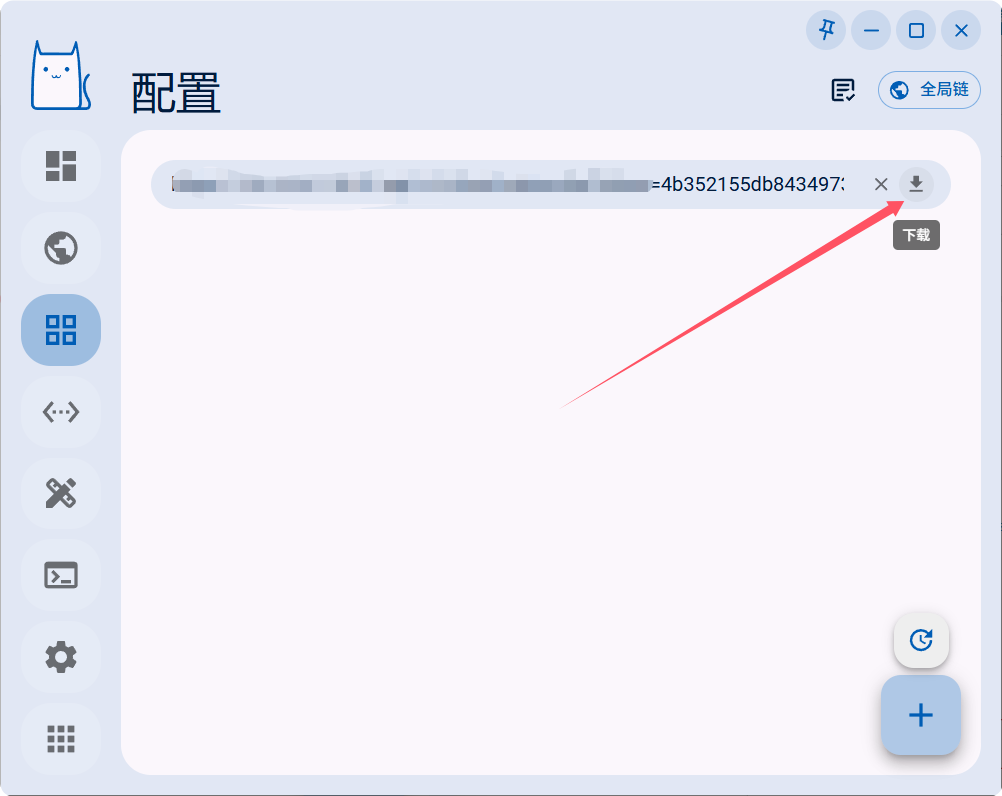
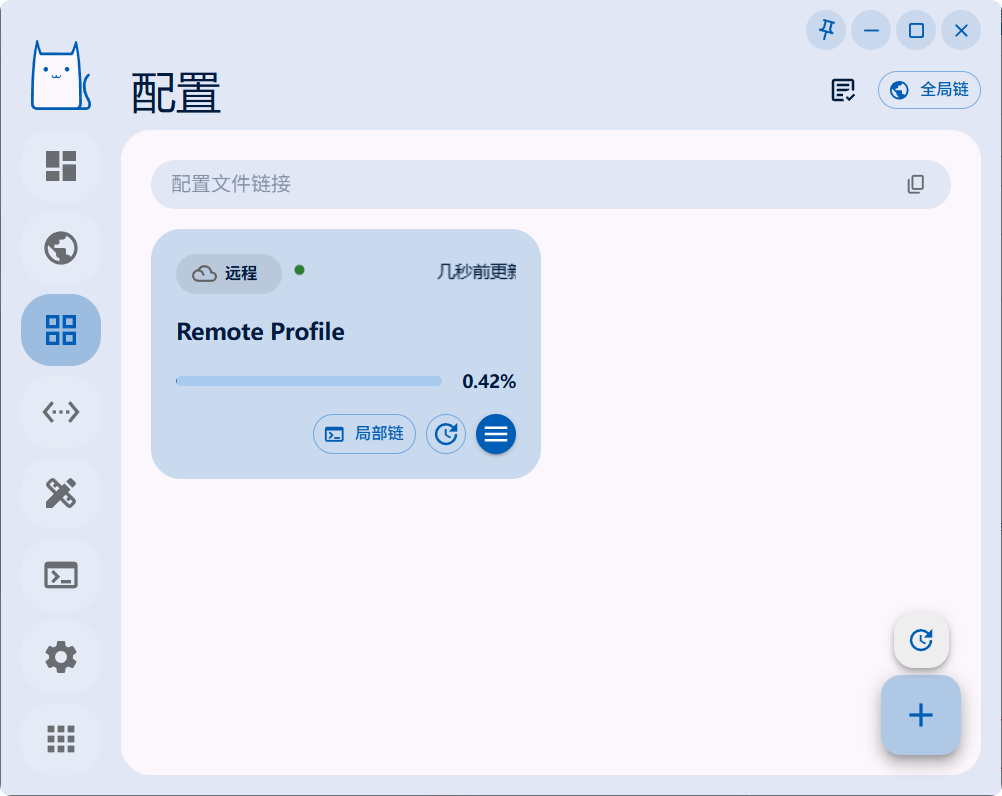
3. Wait for the profile import to finish.
Step 03Enable System Proxy
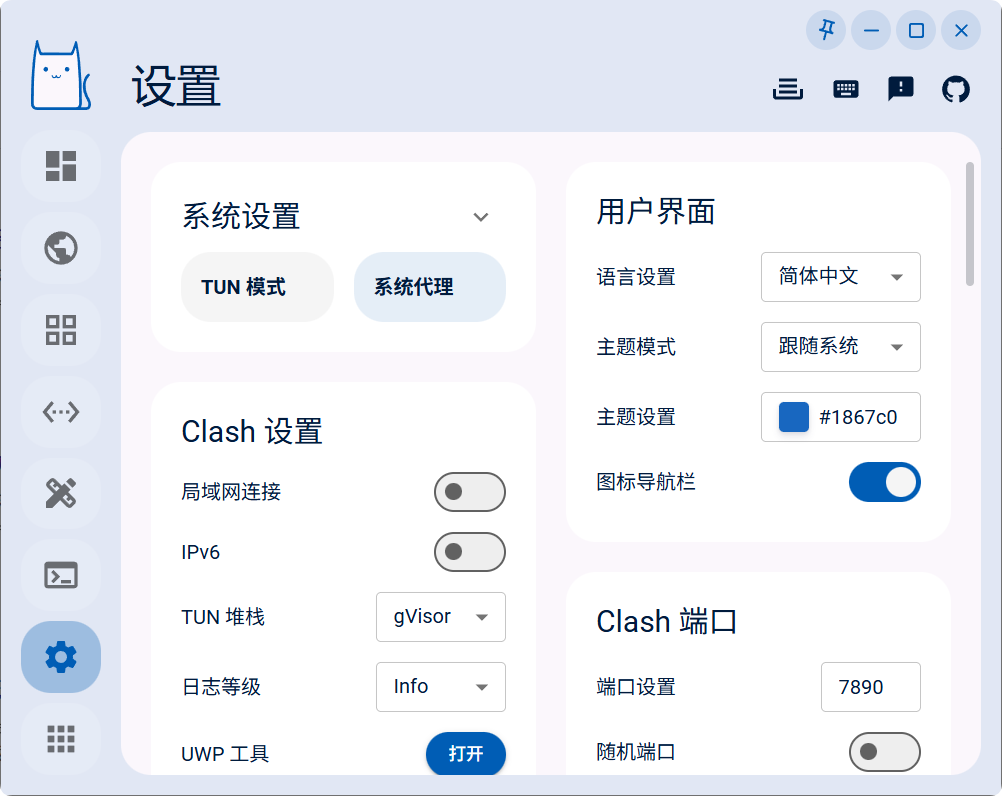
Open Settings in the lower-right corner and enable System Proxy under System Settings. Apps that follow the system proxy will now send traffic through Clash Nyanpasu.
Step 04Switch nodes and policy groups
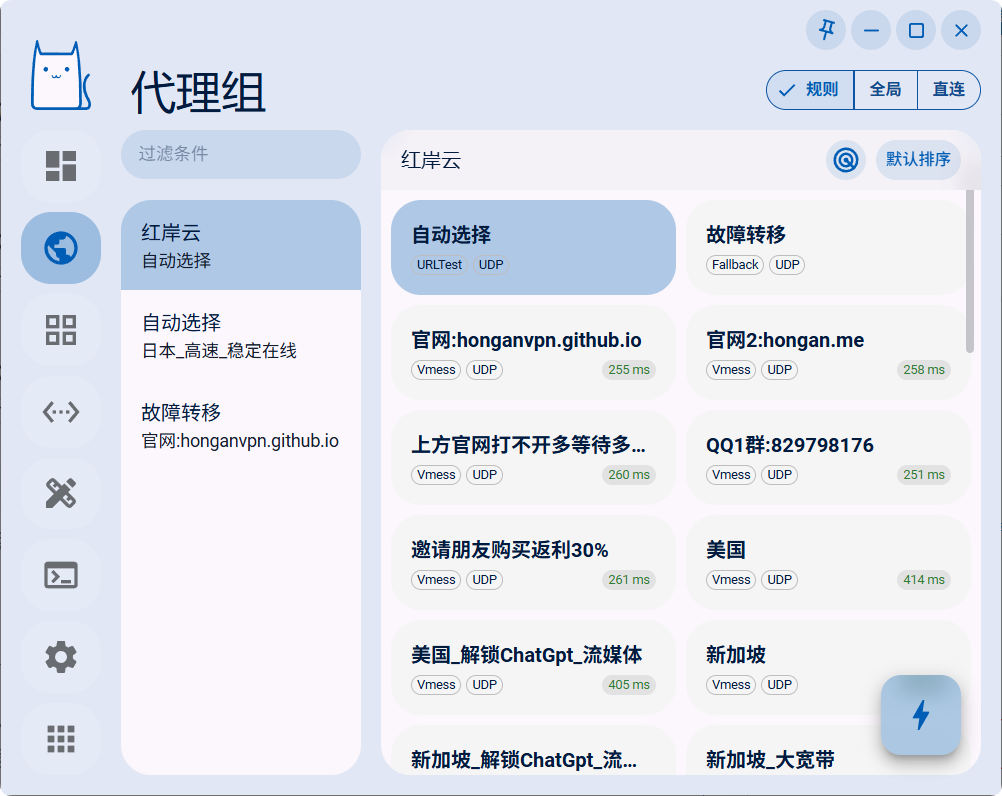
Open Proxy Groups to view the policy groups and nodes, then click a node name to switch to it.
Step 05Review the outbound mode
Clash Nyanpasu provides three common outbound modes: Rule, Global, and Direct.
- Rule: follows the profile rules, sending matched requests through the proxy while handling the rest as direct or blocked traffic.
- Global: sends every request through the selected proxy node and is useful for short connection tests.
- Direct: connects every request without a proxy and is useful when comparing the local network.
Use Rule for everyday browsing. Switch to Global or Direct temporarily only when troubleshooting or when you specifically need that behavior.