

Step 01Get a subscription
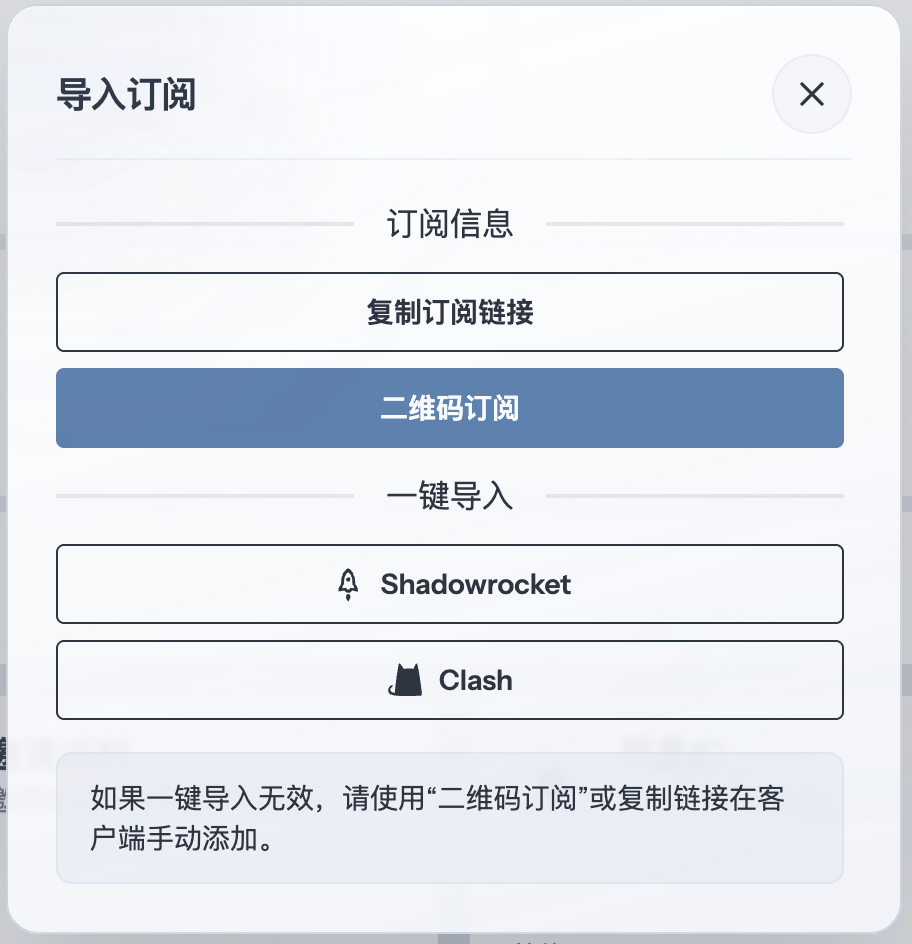
Copy a Clash subscription URL from your provider, then return to ClashX Pro to add the profile. This guide uses 畅连 as an example.
Step 02Add the subscription
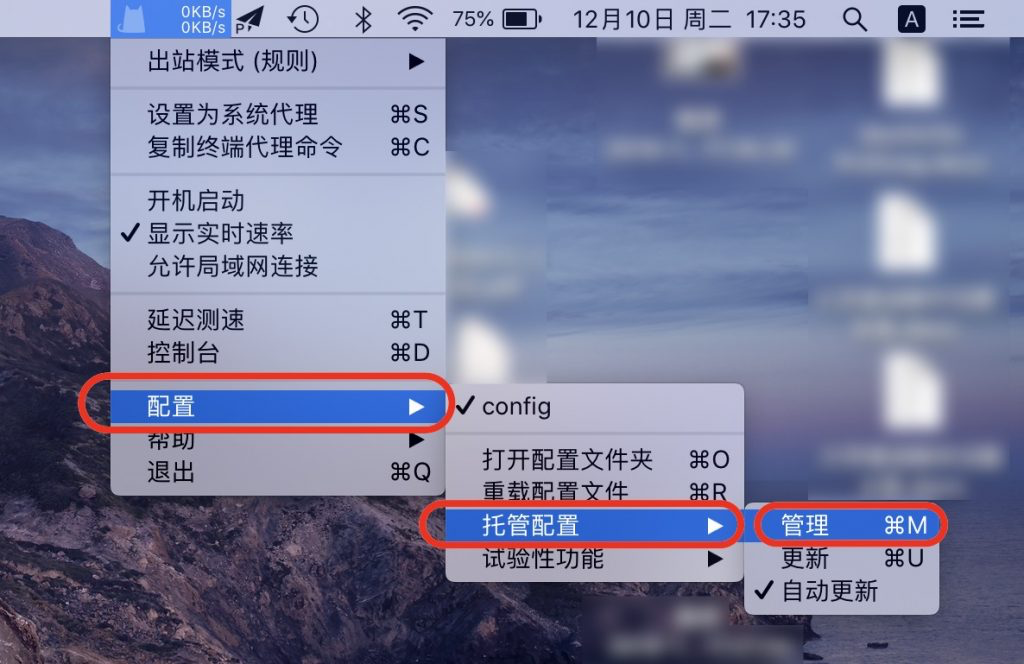
Launch ClashX Pro, click its menu-bar icon, and choose Config → Remote Config → Manage.
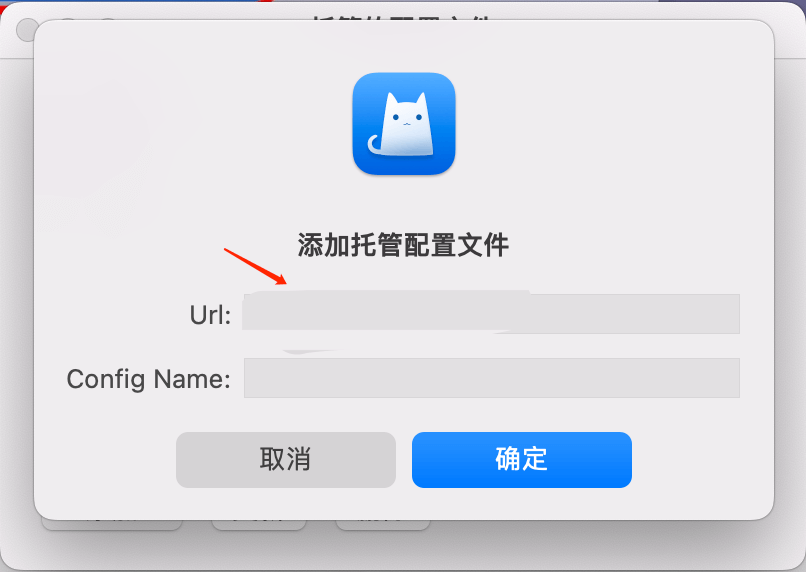
Click Add, paste the subscription address into the Url field, enter a recognizable name, and confirm.
Step 03Select the profile
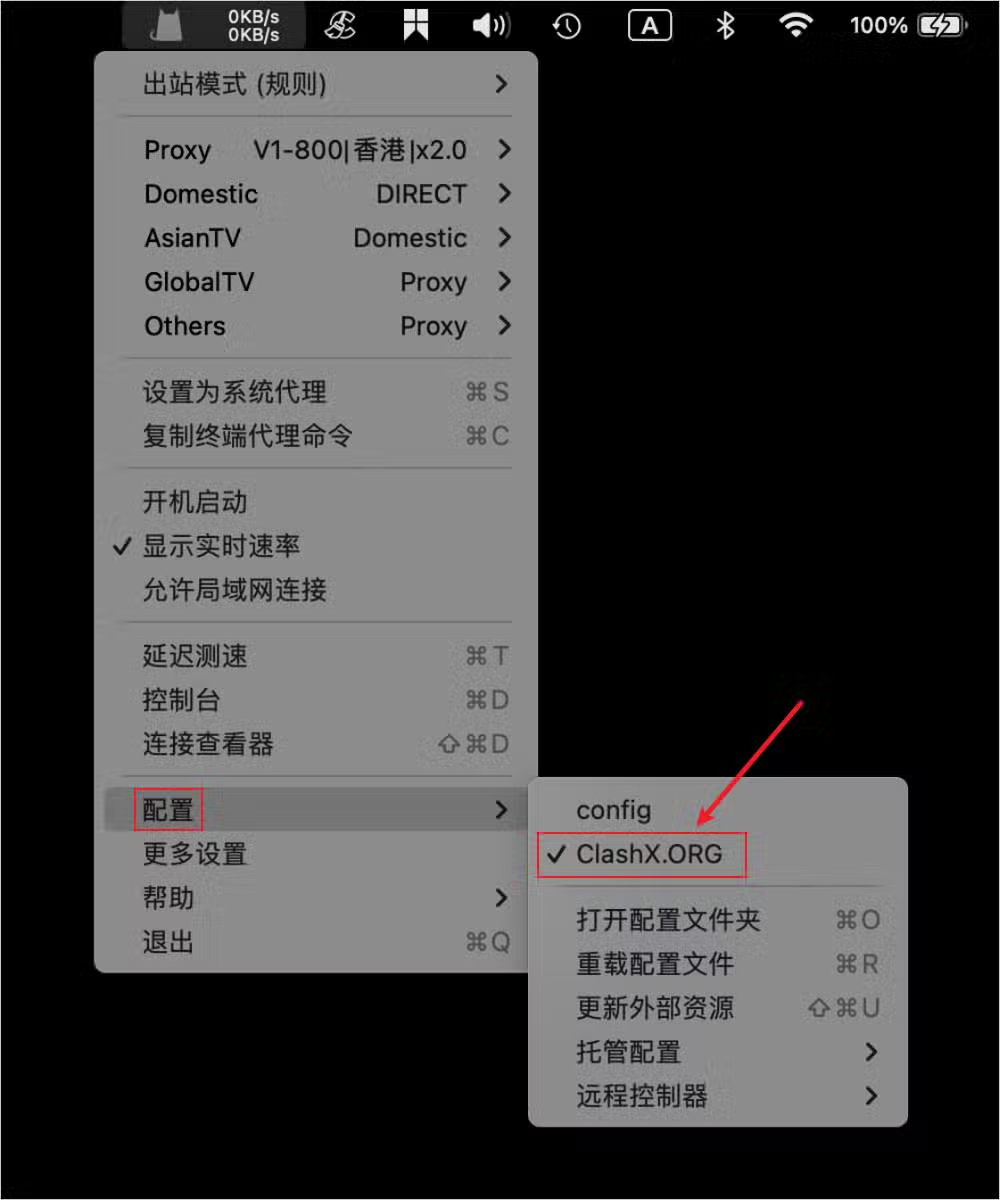
Click the ClashX Pro menu-bar icon, open Config, and select the profile you just added.
Step 04Select a node
Open Proxy from the ClashX Pro menu-bar menu and choose the route you want to use.
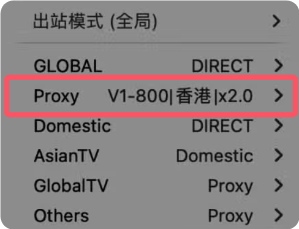
Step 05Enable the proxy
Choose Set as System Proxy. Apps that follow the macOS system proxy will now send traffic through ClashX Pro. The menu-bar cat changes color and shows live transfer rates while traffic is active.
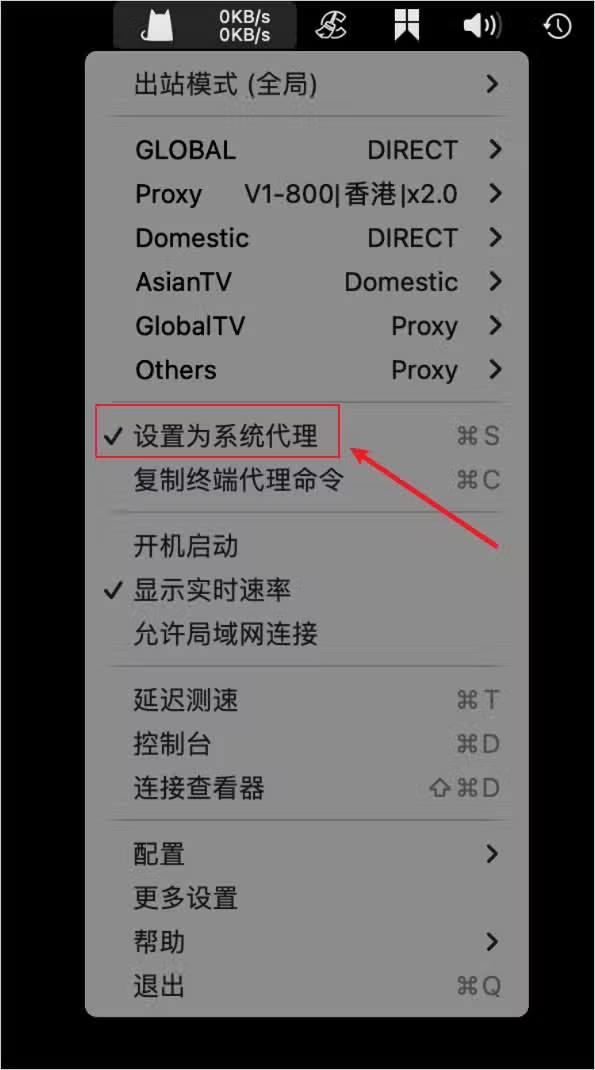
Step 06Understand outbound modes
Rule / Rule-based / Rule Mode: uses domain, IP range, GeoIP, and other rules to choose Direct, Proxy, or Reject. This is usually the best everyday mode.
Global: sends every request to the current proxy node. Use it briefly to check whether routing rules caused a connection problem.
Direct: connects every request directly without a proxy. Use it to restore the local connection for comparison.
Script / Script-based: uses scripts for more complex decisions. Only some profiles and versions support it, so confirm core compatibility first.